Unlock Free AI-Powered Coding Assistance with DeepSeek-Coder-V2 and Ollama: Your Local, Lightweight Code Companion
In today’s fast-paced development world, AI tools are transforming how we write code.

Introduction#
In today’s fast-paced development world, AI tools are transforming how we write code. DeepSeek-Coder-V2, a nice open-source LLM (Large Language Model), paired with Ollama, offers an exceptional local coding assistant — all for free. With Ollama, you can run DeepSeek-Coder-V2 efficiently on your machine, eliminating the need for cloud APIs.
This guide walks you through the process of installing and using DeepSeek-Coder-V2 with Ollama, integrating it with VS Code’s CodeGPT extension for AI-driven autocompletion, and comparing its performance with other models available in Ollama.
Why DeepSeek-Coder-V2 with Ollama is a Game-Changer for Developers#
Here’s why this setup should be on your radar:
Free & Open Source — No subscription needed. Run it locally without incurring cloud fees.
Optimized for Code — Trained on a wide range of programming languages, DeepSeek-Coder-V2 is a solid alternative to proprietary models.
Lightweight & Efficient — Despite having 236B parameters in its original form, the Ollama-optimized version is just ~8.9GB, meaning it can run smoothly on most modern machines.
Seamless Integration with VS Code — Unlock the power of AI-assisted code autocompletions with the CodeGPT VS Code extension, boosting your productivity.
How to Install and Run DeepSeek-Coder-V2 with Ollama#
Step 1: Install Ollama
Ollama is an intuitive tool for running language models locally. To get started:
macOS and Linux: run the following command in your terminal:
curl -fsSL https://ollama.com/install.sh | shWindows: download and install Ollama from ollama.com.
Step 2: Download DeepSeek-Coder-V2
Once Ollama is installed, pull the DeepSeek-Coder-V2 model:
ollama pull deepseek-coder-v2The quantized version is only ~8.9GB, much smaller than its original form.
To test if it’s working, run:
ollama run deepseek-coder-v2This will start an interactive session where you can ask coding-related queries.
Integrating DeepSeek-Coder-V2 with VS Code and CodeGPT#
VS Code, combined with CodeGPT, provides smooth AI-powered code autocompletion.
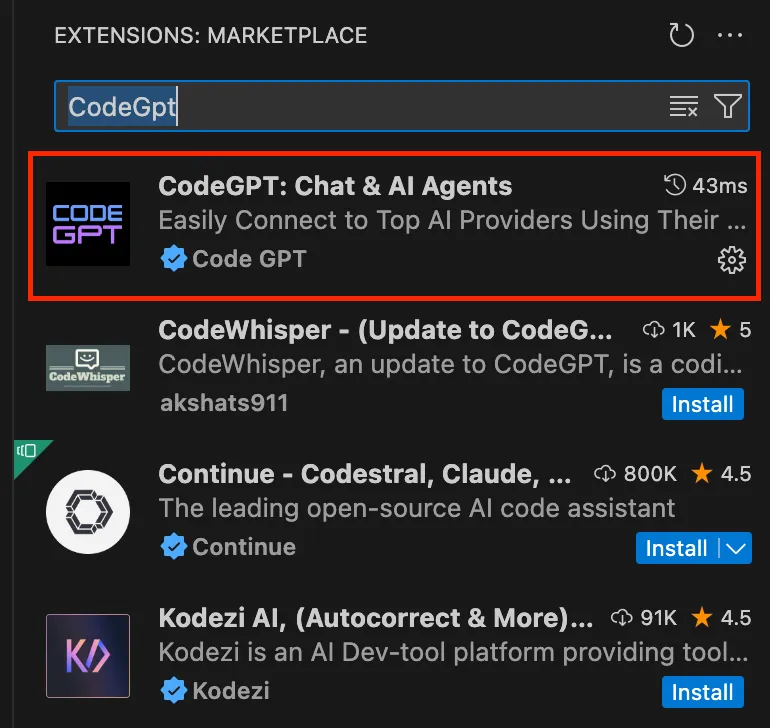
Step 1: Install the CodeGPT Extension
- Open VS Code and go to the Extensions panel (Ctrl + Shift + X).
- Search for CodeGPT and install it.
Step 2: Configure CodeGPT to Use Ollama
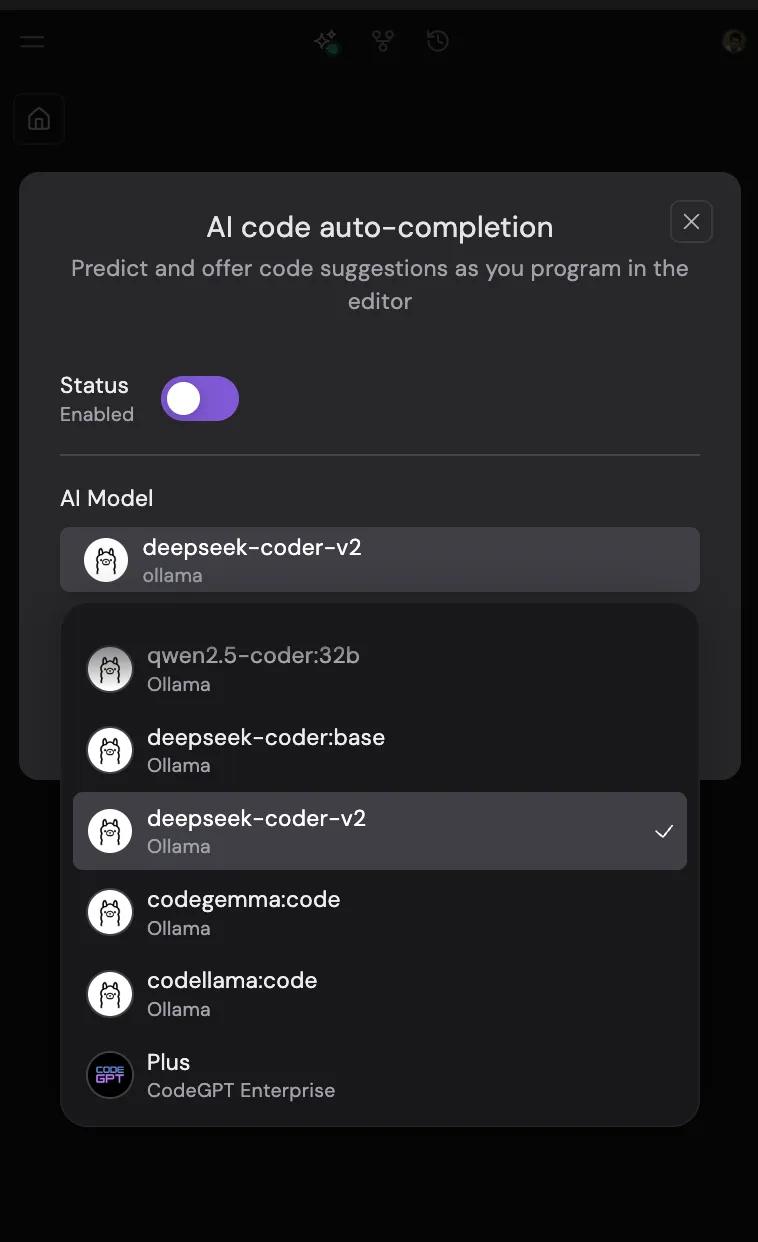
- Open the CodeGPT menu and select the autocomplete setting.
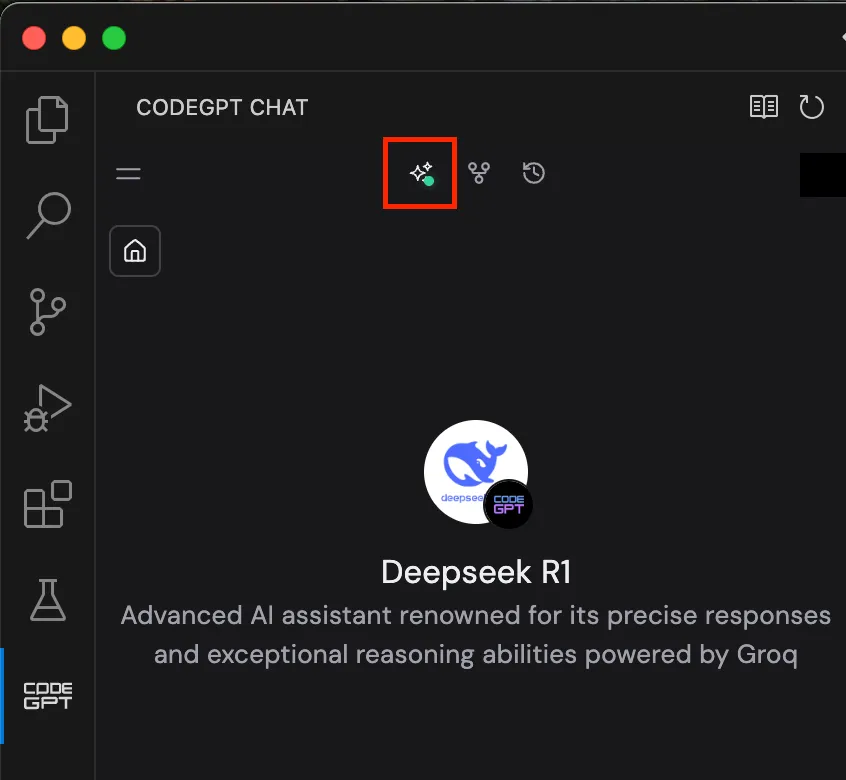
- Select the deepseek-coder-v2 model, save the settings and restart VS Code.
Step 3: Try AI Autocompletion
Open any code file, start typing a function, and see how DeepSeek-Coder-V2 suggests autocompletions based on the context.
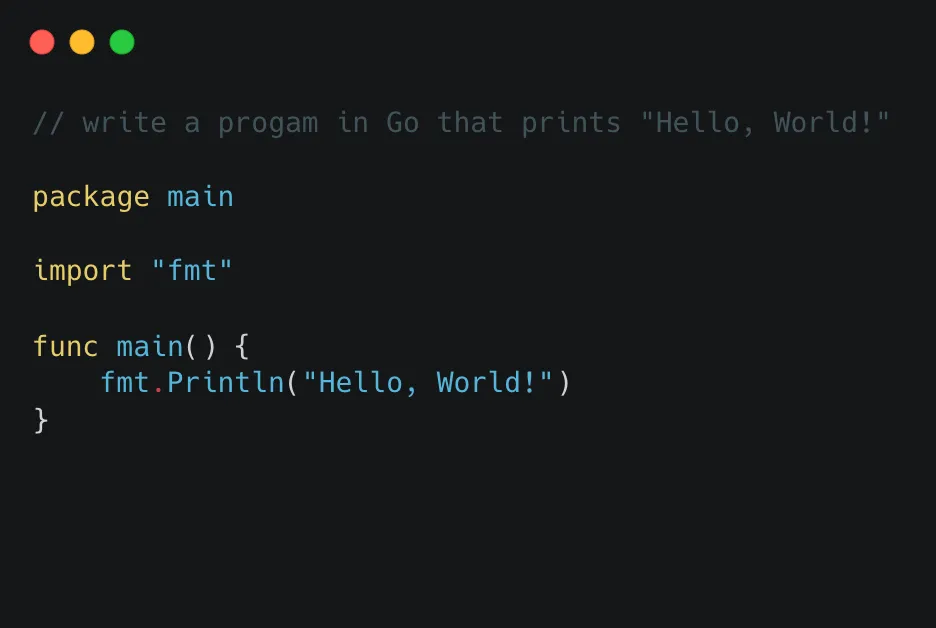
For example, if you write a comment like:
// write a program in Go that prints "Hello, World!"It will generate:
Conclusion#
Running DeepSeek-Coder-V2 locally via Ollama is a great way to get AI-assisted coding — free, efficient, and easy to use. Pairing it with VS Code’s CodeGPT extension brings even more productivity boosts, all without the hassle of cloud costs.
If you’re searching for a free and powerful alternative to GitHub Copilot, give this setup a try.
Next Steps: Test it yourself and share your experience!